Suppose you made your own flash game and want it to be played from your server only and no where else on the internet.
This code may help you:
__________________code start____________________
if (this.root.loaderInfo.url.indexOf("YOUR SITE GOES HERE") != -1) {
//OK THATS WHAT I WANT
}
else {
var myURL:URLRequest = new URLRequest("YOUR SITE GOES HERE");
navigateToURL(myURL);
//if the game is not played from my server redirect the player to my site!
}
__________________code end____________________
Description of the code:
We are using the this.root.loaderInfo.url property that returns the full path of the SWF file, starting with http:// , so we are checking if the path of the game has your web address in it or not. It will return -1 if it doesnt and will return a positive value if it does.
1- if (this.root.loaderInfo.url.indexOf("YOUR SITE GOES HERE") != -1) {
//OK THATS WHAT I WANT
}
The value is not -1, so the game is running from my server.
2- else {
var myURL:URLRequest = new URLRequest("YOUR SITE GOES HERE");
navigateToURL(myURL);
//if the game is not played from my server redirect the player to my site!
}
The value is -1, then someone downloaded the game and running it from his server so you will need to redirect the player to the original place of the game which is your website, the following two lines will do that
var myURL:URLRequest = new URLRequest("YOUR SITE GOES HERE");
navigateToURL(myURL);
You can do this check before the game starts, if it is running from your server then start the game, otherwise dont start the game and redirect the player to your website.
Learn more about game protection here
Showing posts with label Tutorials. Show all posts
Showing posts with label Tutorials. Show all posts
Monday, January 19, 2009


Sunday, January 18, 2009
Protect Your Flash Game From Decompilers
Go to google and search for flash file decompilers, you will find many programs that allow others to download and modify flash files.
The basic way to protect your flash file from being modified while it is on the internet is to enable the Protect From Import and Compress Movie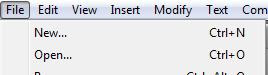
The other way is to encrypt your flash file by using one of the encryption tools, so that if someone downloaded your flash file the code inside it will be encrypted and the downloader will not be able to understand anything from the code.

" Version Control and Encryption is a hot, sexy new way to be able to update your SWFs live and protect them from prying eyes. All the cool kids are doing it! ".
To try mochi's hot, sexy new Version Control and Encryption:
1- Go to https://www.mochiads.com/ .
2- Sign Up if you are not and then Log in.
3- Scroll down to the bottom of the page and click on " SETUP NEW GAME "
4- In the "Title" field enter the name of the game

5- In the "Dimensions" filed enter the (widthxheight) of the game.

6- In "Version Control" choose "Yes" to install the Version Control and Encryption tool into your game.

7- Click on "CREATE GAME" .
11- Click "UPLOAD GAME" .
Now mochi will make sure that the code is in the SWF file and will generate an encrypted SWF out of the SWF you uploaded!
If everything is ok, you will see this
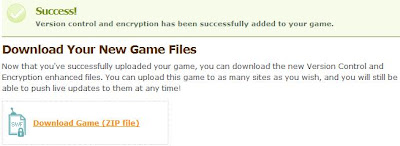
Download the file, inside it you will find the encrypted SWF!
This is not the only way to that, the internet is full of code encryption tools that do the same job, but this one in my opinion is the easiest to use!
I hope that this post helped you,,
Have a nice day..
The basic way to protect your flash file from being modified while it is on the internet is to enable the Protect From Import and Compress Movie
options, you can do that by going to:
1- File
1- File
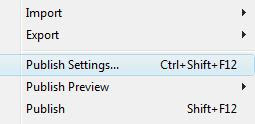
2- Publish Settings
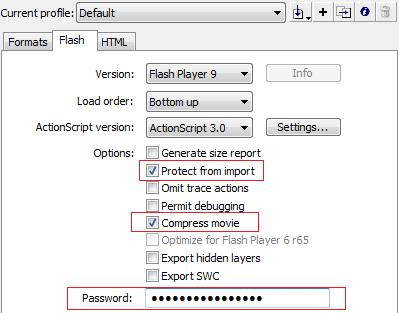
3- Flash Tab
4- Check the Protect From Import and Compress Movie boxes.
5- In the Password field enter a password, so that if anyone wanted to import your flash file it will ask for password.
This will make it difficult for decompilers to decompile your flash file, but still there are many decompilers that can decompile protected flash files.
The other way is to encrypt your flash file by using one of the encryption tools, so that if someone downloaded your flash file the code inside it will be encrypted and the downloader will not be able to understand anything from the code.

One of the new and free tools is MochiAds Version Control and Encryption, mochiads say about it:
" Version Control and Encryption is a hot, sexy new way to be able to update your SWFs live and protect them from prying eyes. All the cool kids are doing it! ".

To try mochi's hot, sexy new Version Control and Encryption:
1- Go to https://www.mochiads.com/ .
2- Sign Up if you are not and then Log in.
3- Scroll down to the bottom of the page and click on " SETUP NEW GAME "

4- In the "Title" field enter the name of the game

5- In the "Dimensions" filed enter the (widthxheight) of the game.

6- In "Version Control" choose "Yes" to install the Version Control and Encryption tool into your game.

7- Click on "CREATE GAME" .

8- Under "Authenticate Your Game:" there is a code
" var _mochiads_game_id:String = "##################"; ", copy it and paste it in any place in your game and run the game. This way mochi will know that your are the owner of the game.

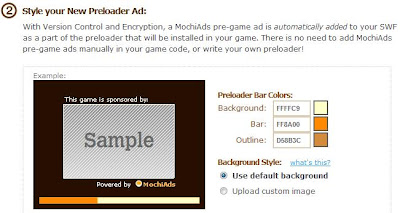
9- Under "Style your New Preloader Ad:" choose the style of the preloader that matches your game.
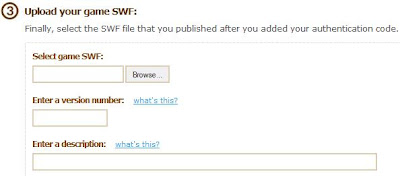
10- Under "Upload your game SWF:" upload your SWF file that has the code in, enter the version number of the game and description of the uploaded file.

9- Under "Style your New Preloader Ad:" choose the style of the preloader that matches your game.

10- Under "Upload your game SWF:" upload your SWF file that has the code in, enter the version number of the game and description of the uploaded file.

11- Click "UPLOAD GAME" .
Now mochi will make sure that the code is in the SWF file and will generate an encrypted SWF out of the SWF you uploaded!
If everything is ok, you will see this

Download the file, inside it you will find the encrypted SWF!
This is not the only way to that, the internet is full of code encryption tools that do the same job, but this one in my opinion is the easiest to use!
I hope that this post helped you,,
Have a nice day..
Saturday, January 17, 2009
AS3 Loading Screen ( Preloader )
Why do we need loading screen?
Flash is built for streaming content, which means the movie will start if the minimum bare content has been loaded, such as elements used in the first frame.
This will not be good in games, because if a part of the game didnt load, then the game may not work properly!
So we need to dedicate a frame at the beginning of the game to load the whole game parts on and after the loading is done, we will allow the game to start.
The following code will show you how to do that:
__________________code start____________________
stop();
addEventListener(Event.ENTER_FRAME, loadProgress);
function loadProgress(event:Event) {
// get bytes loaded and bytes total
var movieBytesLoaded:int = this.root.loaderInfo.bytesLoaded;
var movieBytesTotal:int = this.root.loaderInfo.bytesTotal;
// convert to KiloBytes
var movieKLoaded:int = movieBytesLoaded/1024;
var movieKTotal:int = movieBytesTotal/1024;
var percentageLoaded:Number=Math.round((movieKLoaded/movieKTotal))*100;
// show progress
progressText.text =""+percentageLoaded+"% Loaded";
// move on if done
if (movieBytesLoaded >= movieBytesTotal) {
removeEventListener(Event.ENTER_FRAME, loadProgress);
gotoAndStop(2);
}
}
__________________code end____________________
Description of the code:
1- First you need to add " stop(); " at the begining to stop the movie at the loading page.
2- Add an event listener that will apply the loadProgress function to all frames "addEventListener(Event.ENTER_FRAME, loadProgress);"
3- The first two lines in the loadProgress function are
var movieBytesLoaded:int = this.root.loaderInfo.bytesLoaded;
var movieBytesTotal:int = this.root.loaderInfo.bytesTotal;
" this.root.loaderInfo " is used to get the status of the movie, so in the first line it will get the loaded bytes of the movie and in the second line it will get the total bytes of the movie .
4- Lines 3 and 4 in the function are
var movieKLoaded:int = movieBytesLoaded/1024;
var movieKTotal:int = movieBytesTotal/1024;
In this step we are converting the loaded bytes to kilobytes, because they will be needed in the next step when calculating the loading percentage .
5- Line 5 in the function is
var percentageLoaded:Number=Math.round((movieKLoaded/movieKTotal))*100;
In this step we are calculating the percentage of the loaded bytes.
First divide the loaded kilobytes over the total kilobytes of the movie, that will give us the ratio of the loaded bytes over the total bytes of the movie. Then we need to round the result to not have fractions in the percentage. After that we multiply the result by 100 and that will give us the percentage of the loaded bytes.
6- Line 6 in the function is
progressText.text =""+percentageLoaded+"% Loaded";
In this line we are showing the percentage loaded movie to the user.
I made a dynamic text field on the stage and named it progressText, so by using
progressText.text we are editing the content of the text field and entering the percentage in it.
Note: progressText.text accepts only strings, so I added ( ""+ ) after it which means deal with everything after me as string!
7- Line 7 in the function is
if (movieBytesLoaded >= movieBytesTotal) {
removeEventListener(Event.ENTER_FRAME, loadProgress);
gotoAndStop(2);
}
Now we are checking if the bytes loaded are larger than or equal to the total bytes, if so then the loading is done.
When the loading is done, we will need to do two actions:
>Stoping the loadProgress listener.
>Moving to the frame that the game starts on (in my case im assuming that the game starts on frame 2).
THATS IT!
Here is the source file
Flash is built for streaming content, which means the movie will start if the minimum bare content has been loaded, such as elements used in the first frame.
This will not be good in games, because if a part of the game didnt load, then the game may not work properly!
So we need to dedicate a frame at the beginning of the game to load the whole game parts on and after the loading is done, we will allow the game to start.
The following code will show you how to do that:
__________________code start____________________
stop();
addEventListener(Event.ENTER_FRAME, loadProgress);
function loadProgress(event:Event) {
// get bytes loaded and bytes total
var movieBytesLoaded:int = this.root.loaderInfo.bytesLoaded;
var movieBytesTotal:int = this.root.loaderInfo.bytesTotal;
// convert to KiloBytes
var movieKLoaded:int = movieBytesLoaded/1024;
var movieKTotal:int = movieBytesTotal/1024;
var percentageLoaded:Number=Math.round((movieKLoaded/movieKTotal))*100;
// show progress
progressText.text =""+percentageLoaded+"% Loaded";
// move on if done
if (movieBytesLoaded >= movieBytesTotal) {
removeEventListener(Event.ENTER_FRAME, loadProgress);
gotoAndStop(2);
}
}
__________________code end____________________
Description of the code:
1- First you need to add " stop(); " at the begining to stop the movie at the loading page.
2- Add an event listener that will apply the loadProgress function to all frames "addEventListener(Event.ENTER_FRAME, loadProgress);"
3- The first two lines in the loadProgress function are
var movieBytesLoaded:int = this.root.loaderInfo.bytesLoaded;
var movieBytesTotal:int = this.root.loaderInfo.bytesTotal;
" this.root.loaderInfo " is used to get the status of the movie, so in the first line it will get the loaded bytes of the movie and in the second line it will get the total bytes of the movie .
4- Lines 3 and 4 in the function are
var movieKLoaded:int = movieBytesLoaded/1024;
var movieKTotal:int = movieBytesTotal/1024;
In this step we are converting the loaded bytes to kilobytes, because they will be needed in the next step when calculating the loading percentage .
5- Line 5 in the function is
var percentageLoaded:Number=Math.round((movieKLoaded/movieKTotal))*100;
In this step we are calculating the percentage of the loaded bytes.
First divide the loaded kilobytes over the total kilobytes of the movie, that will give us the ratio of the loaded bytes over the total bytes of the movie. Then we need to round the result to not have fractions in the percentage. After that we multiply the result by 100 and that will give us the percentage of the loaded bytes.
6- Line 6 in the function is
progressText.text =""+percentageLoaded+"% Loaded";
In this line we are showing the percentage loaded movie to the user.
I made a dynamic text field on the stage and named it progressText, so by using
progressText.text we are editing the content of the text field and entering the percentage in it.
Note: progressText.text accepts only strings, so I added ( ""+ ) after it which means deal with everything after me as string!
7- Line 7 in the function is
if (movieBytesLoaded >= movieBytesTotal) {
removeEventListener(Event.ENTER_FRAME, loadProgress);
gotoAndStop(2);
}
Now we are checking if the bytes loaded are larger than or equal to the total bytes, if so then the loading is done.
When the loading is done, we will need to do two actions:
>Stoping the loadProgress listener.
>Moving to the frame that the game starts on (in my case im assuming that the game starts on frame 2).
THATS IT!
Here is the source file
Friday, January 16, 2009
Saving Local Data
Local data is used to save data into the user's machine such as score,level number,..etc.
On the top of this post I made a simple counter that counts how many times did the visitor visit my blog!
Here is the code for it
__________________code start____________________
var count:int;//the counter variable
var myLocalData:SharedObject = SharedObject.getLocal("mygamedata");//making a local shared object
var myData:String=""+myLocalData.data.storedInfo;//adding the info in the shared object to myData
if(myData=="undefined")//if there is no stored data before in the shared object it will return undefined
myLocalData.data.storedInfo=1;//store one because this is the 1st visit
else//if this is not the 1st visit increment the value of the shared object by 1
++myLocalData.data.storedInfo;
count=myLocalData.data.storedInfo;//assign the value of the shared object into count
counter.text=""+count;//write the vaalue of count
__________________code end____________________
Here is the source file
Enjoy it!!
Thursday, January 15, 2009
Protect Your Game From Right Clicks!!
Right click any flash file, a menu will show up with many items, in the middle you will find "Rewind" and "Forward", those two items allows the user to move from frame to frame in the flash file.
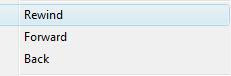
This will be a bug in the game or an easy cheat for players to jump from level to level if each level of the game has its own frame.
The solution is to disable right clicks, as in the example below:
The following code shows you how to do that:
__________________code start____________________

This will be a bug in the game or an easy cheat for players to jump from level to level if each level of the game has its own frame.
The solution is to disable right clicks, as in the example below:
The following code shows you how to do that:
__________________code start____________________
var menu:ContextMenu = new ContextMenu(); //Instance of ContextMenu menu.hideBuiltInItems(); //Hide the default items
var item1:ContextMenuItem = new ContextMenuItem("All rights reserved");//Creating an item
menu.customItems.push(item1);//Adding the item to the menu
this.contextMenu = menu;//Apply our menu plz!
__________________code end____________________
This code will remove the items from the menu and add an item that says "All rights reserved".
You may creat new items and push them to the menu.
Write this code in the first frame in your flash file to disable right clicks in all frames.
Download the source file
Enjoy !
Subscribe to:
Posts (Atom)